

fix RAW drive without format
Is it possible to fix RAW drive without format?
Yes, it is possible to fix a RAW drive without formatting, but it depends on the cause of the issue. A RAW drive occurs when the file system becomes corrupted, missing, or unreadable by the operating system. This can result from sudden power loss, improper ejection, virus attacks, or physical drive damage.
In many cases, the data is still present on the drive but inaccessible due to file system errors. Advanced data recovery software or specialized disk utilities can often help repair the file system or retrieve data without performing a format. Additionally, professional data recovery services can handle severe cases where logical errors or minor hardware faults are involved.
However, it’s important to note that continuing to use or write to a RAW drive can increase the risk of permanent data loss. Before attempting any repair, users should avoid formatting the drive if they want to preserve the original files. Whether recovery is successful largely depends on the severity of corruption and the tools used.
While fixing a RAW drive without formatting is possible, success is not guaranteed, and taking timely action is crucial to prevent further damage or data loss.
How to fix RAW drive without format using CMD
When your hard drive or USB drive suddenly becomes RAW, you might worry about losing all the files stored on it. Fortunately, you can try several methods to repair a RAW drive using Command Prompt (CMD) without formatting it first. Below are three step-by-step fixes that can help you restore access to your data.
Fix 1. Fix file system and bad sectors
One of the most common reasons for a drive turning RAW is file system corruption or the presence of bad sectors. To address this, Windows offers the CHKDSK command, which can scan, detect, and repair certain logical errors on the drive. Using CMD, you can run this process without losing files if the corruption is minor.
Step 1. Press Windows + S, type cmd, and choose Run as administrator to open Command Prompt.
Step 2. Type the following command and press Enter:
chkdsk f: /f /r /x (Replace f: with the letter of your RAW drive.)
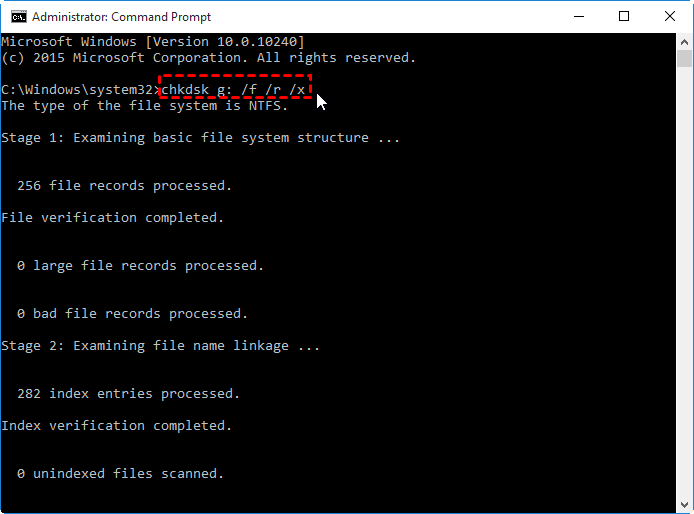
chkdsk-check-error
Step 3. Wait for the scan to complete. The /f flag fixes file system errors, and the /r flag detects and repairs bad sectors.
Step 4. Once completed, restart your computer and check if the drive is now accessible.
AOMEI Partition Assistant is a powerful and user-friendly disk management tool that can help fix file system errors and repair bad sectors on your hard drive or external storage devices. When a drive encounters problems like file system corruption or bad sectors, it can lead to issues such as a RAW file system, inaccessible partitions, or frequent disk errors.
One of the most useful features of AOMEI Partition Assistant is its Check Partition tool. This function allows you to:
1. Check and fix file system errors – It scans your partition for logical errors in the file system, similar to the Windows CHKDSK utility, and automatically fixes them to restore your drive’s functionality.
2. Scan and repair bad sectors – AOMEI Partition Assistant can detect bad sectors on your disk and mark them to prevent the operating system from using these damaged areas, reducing the risk of data loss.
Categories: Technology
Sorry, comments are closed for this item.